Builder Content Guide User Guide
Builder Content Guide helps staff find the right editing location and understand the effect of a change. The website administrator curates short instructions for selected tasks.
You do not need a guide for every content item. Start with frequent maintenance tasks, common pitfalls and shared templates. Three clear instructions can already make a useful handover.
Contents
- Readers Find and edit content
- Three everyday tasks
- Administrators Set up the guide
- Supported sources and limits
- Troubleshooting
- Handover and data
Readers Find and edit content
- Open Find content in WordPress admin. Your administrator may rename it, for example Instructions.
- Search for your task, such as phone number, contact or menu. Optionally select an area.
- Open the matching guide and read its purpose, usage and effects before changing anything.
- Follow the numbered steps. Edit original opens the existing editor when your permissions and the active source allow it.
- Save in that editor, then check the website. View website opens the configured example page in a new tab.
The guide does not modify originals or grant editing permissions. A copied guide link requires an authenticated, authorized reader and a visible entry. If automatic copying fails, select and copy the link manually.
Three everyday tasks
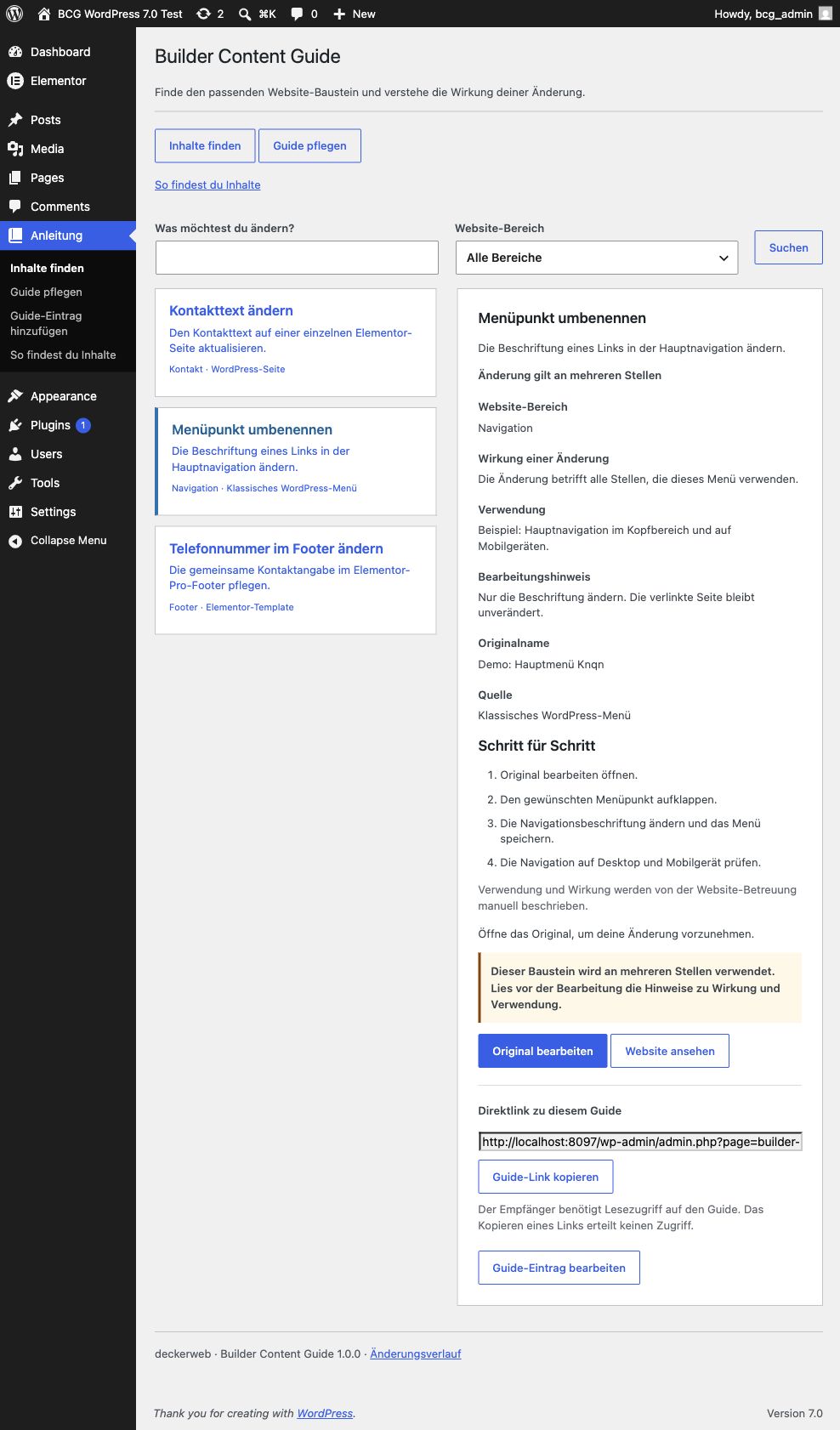
The screenshot shows the three tasks on the demonstration website. Its custom menu name is Anleitung (Instructions), and the guide text is German. Actual names and editing locations are chosen by your website administrator.
Change contact text
Guide name: Change contact text. Original: the contact page or the contact template actually used. Search terms: contact, address, opening hours.
- Check whether the details appear only on the contact page or in several places.
- Open Edit original. A page managed in Elementor opens in Elementor.
- Select the text area described by the guide and change the agreed details.
- Update and check the contact page. For shared templates, check the other affected pages too.
Identify the actual text area in the instructions. Dynamic fields may have a different editing location; the administrator should explain it explicitly.
Rename a menu item
Guide name: Rename a menu item. Original: the displayed classic menu or block navigation. Search terms: menu, navigation, label.
- Read its usage: main navigation, mobile navigation or several menus?
- Open Edit original and select the described menu item.
- Change the navigation label and save.
- Check desktop and mobile navigation, the target URL and the link’s behavior.
A menu label does not automatically change the page title. Classic menus use menu administration; block navigation uses the Site Editor of a suitable block theme.
Change the footer phone number
Guide name: Change the footer phone number. Original: for example an Elementor Pro footer or a WordPress template part. Search terms: telephone, phone, footer.
- Read usage and effects. A shared footer may appear on many pages.
- Open Edit original and select the telephone area described by the guide.
- Change the displayed number and check the
tel:target if it is a phone link. - Save and inspect the example page. Test the link on a mobile device.
The guide does not detect where a footer is embedded. The administrator describes its actual usage and provides an appropriate example page.
Administrators Set up the guide
Install and activate the supplied plugin ZIP on a staging website first. Open Find content → Manage guide. A new installation has no guides; demonstration entries are not installed.
Choose the three most important tasks. Use Add guide entry and write a clear everyday task name. Search for the original by title and filter by provider or content type. Filtering does not silently change an existing selection; the native selector remains available without JavaScript.
| Field | What to write |
|---|---|
| Name and purpose | The everyday task and expected result |
| Original | The actual editing location, not simply a similarly named template |
| Area | For example Contact, Navigation or Footer |
| Effect and usage | Local, several places or unknown; the actual affected areas |
| Editing guidance | Boundaries, pitfalls and any required consultation |
| Steps | One step per line; readers see a numbered list |
| Search terms | Words staff are likely to search for |
| Example URL | A checked absolute HTTP/HTTPS address for verification |
| Visibility | Explicitly enable reader visibility after reviewing the guide |
Under Guide access, explicitly choose reader roles. Access is per website and does not replace WordPress or builder permissions. Administrators curate guides; authorized readers view visible entries.
Support contact and menu appearance
Under Manage guide, configure an optional support contact with a name, short explanation, email, telephone and website. Explicitly enable its display. Readers see it on How to find content and after unsuccessful searches.
Under Admin menu, customize the top-level menu label and choose one of ten WordPress icons. An empty label restores Find content. Submenus and permissions retain their functions.
Maintain existing guides
Review guides after theme, builder or original changes. Duplicate copies only the guide and reference into a hidden draft. Adjust the name, original and steps, then enable visibility after review. Original content is not duplicated.
Administrators can add or find related guides at supported originals: content lists, the classic editor, the selected classic menu, and the Content guide panel in supported block and Site Editors. These are curation entry points, not automatic guide notices for inserted pattern copies.
Supported sources and limits
- WordPress pages, posts, active-theme template parts, block navigation and classic menus.
- Saved and registered WordPress patterns. An inserted independent pattern copy does not automatically connect to the pattern’s guide.
- Active Elementor Free/Pro document types. Global design kits are excluded. Tested with Elementor Free 4.3.4 and Elementor Pro 4.3.1.
- Bricks templates with existing builder permissions and GeneratePress Elements when the source is available.
Support does not mean every item has a guide or every reader can edit it. Inactive builders, missing originals, trashed content and unsuitable themes may prevent an editing link. Saved references are preserved.
Troubleshooting
No guide found: Try a shorter search and all areas. Ask the administrator to check for a visible entry and a reader-role grant. The help page explains supported content types.
No editing link: Check the original, active source and editing permissions. Reader access alone is insufficient. After a theme change, navigation or template parts may have a different editing location.
Pattern inserted without a guide: A copy is independent content. Its guide remains attached to the source pattern; for an important page task, a guide linked to that page may be more useful.
Direct link unavailable: Sign in with an authorized account. Hidden drafts and entries without access remain concealed.
Handover and data
Try the contact, navigation and footer tasks with the intended staff account. Verify clarity, permissions, editing locations and results. Add specific missing guidance.
Guide data and settings survive deactivation and uninstall. Multisite websites each have their own guide, reader access, support contact and menu name; new websites start empty. The guide requires no cloud service. See the Readme for optional online components.